
How to download TikTok videos on PC with the Chrome extension
This works the same on a Windows PC, a laptop or a Mac. You set it up once, then every video is one click.
- Install the extension. Click Add to Chrome. The Chrome Web Store opens. Press "Add to Chrome" and confirm.
- Open TikTok in Chrome. Go to tiktok.com. Signing in is optional.
- Find the video. Use your For You feed, a profile, search or a link someone sent you.
- Click Download. A Download button sits right beside the post. Click it once.
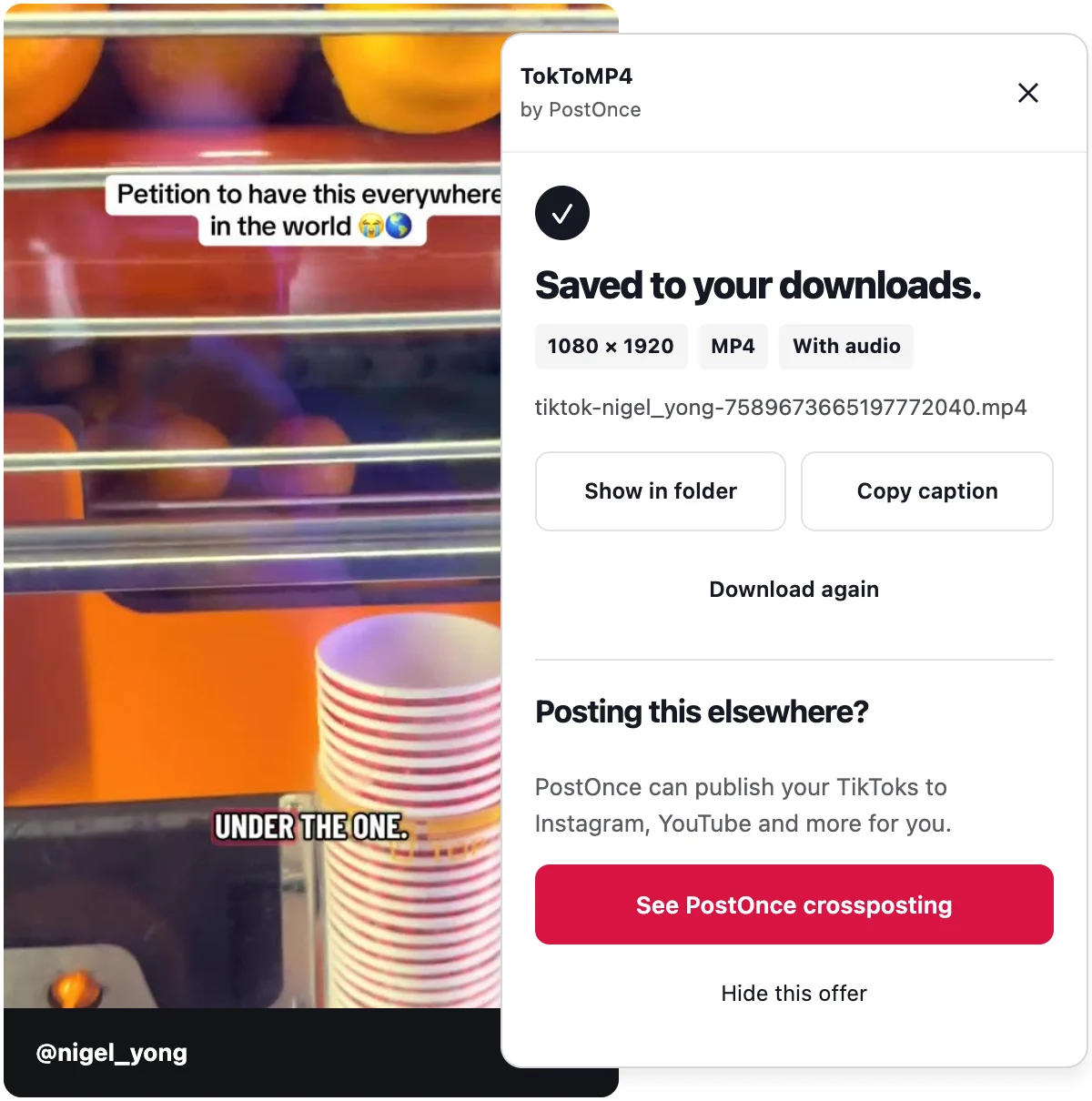
- Watch the panel. A small panel shows the progress, then "Saved to your downloads." with the exact resolution.
- Open the file. It is in your browser's downloads folder, as an MP4 with sound.
There is no daily limit, so you can repeat step 4 as often as you need.
What you get
- The best quality TikTok's website offers, up to 1080p when TikTok serves it
- The post's best audio, paired with the video
- No re-encoding
When TikTok serves the picture and sound separately, the extension combines them in your browser into one file.
Use TikTok's own Download option
TikTok has its own save option. Open the video, click Share, and look for Download or Save video. It only appears when the creator allows downloads. If you do not see it, downloads are likely turned off for that video, so use the extension or the web tool instead.
Use the web tool, without installing anything
If you cannot add extensions, for example on a work or school computer, use the paste-a-link web tool.
- Open the video on tiktok.com and copy the link from the address bar.
- Go to the TokToMP4 home page.
- Paste the link into the box and press Download.
- Save the file.
The web tool only works with public posts and has a daily limit, because it runs on our servers. It also accepts vm.tiktok.com short links, and it works on phones.
Download TikTok on Mac
On a Mac, the extension steps are exactly the same. Install TokToMP4 in Chrome, open tiktok.com and click Download beside the video. The file lands in your Downloads folder.
Other Chromium browsers that install extensions from the Chrome Web Store work too. Safari does not support the extension, so on Safari use the web tool on the home page.
Downloading TikTok on a laptop
For this purpose a laptop is just a PC. Use desktop Chrome on Windows, macOS or another system and follow the extension steps. The quality is the same as on a desktop.
Photo posts and slideshows on PC
Click Download beside a TikTok photo post or slideshow and the extension saves every image, numbered in order. If you want the soundtrack too, the web tool returns it as an audio file. See the TikTok slideshow downloader for details.
To learn more about the extension itself, visit the TikTok downloader Chrome extension page.
What you cannot download
- TikTok Stories
- LIVE videos
- Whole profiles, or many videos at once
- Private posts you cannot open yourself
Troubleshooting on PC
TikTok shows a human check
TikTok sometimes asks you to confirm you are human. Complete the check on TikTok, then press Try again. The extension never solves or skips these checks.
I do not see a Download button
Make sure you are on tiktok.com in desktop Chrome, and the extension is installed and turned on. Reload the page.
The video was removed or is private
The extension says so clearly. If you cannot open the post, there is nothing to save.
The download stopped
If your connection drops, press Retry.
The web tool says I hit the limit
The web tool's limit resets daily. The extension has no limit.
Privacy and reuse
The extension is free, needs no account and does no usage tracking. Downloads stay on your computer, and nothing is uploaded.
Only download TikToks you own or have permission to reuse.
TokToMP4 is made by PostOnce and is not affiliated with TikTok or ByteDance.